Exporting editions from Audio.co
Once an edition has been generated, the goal is to automatically import it into your radio automation software.
You have several options for exporting and downloading the latest edition into your radio automation software:
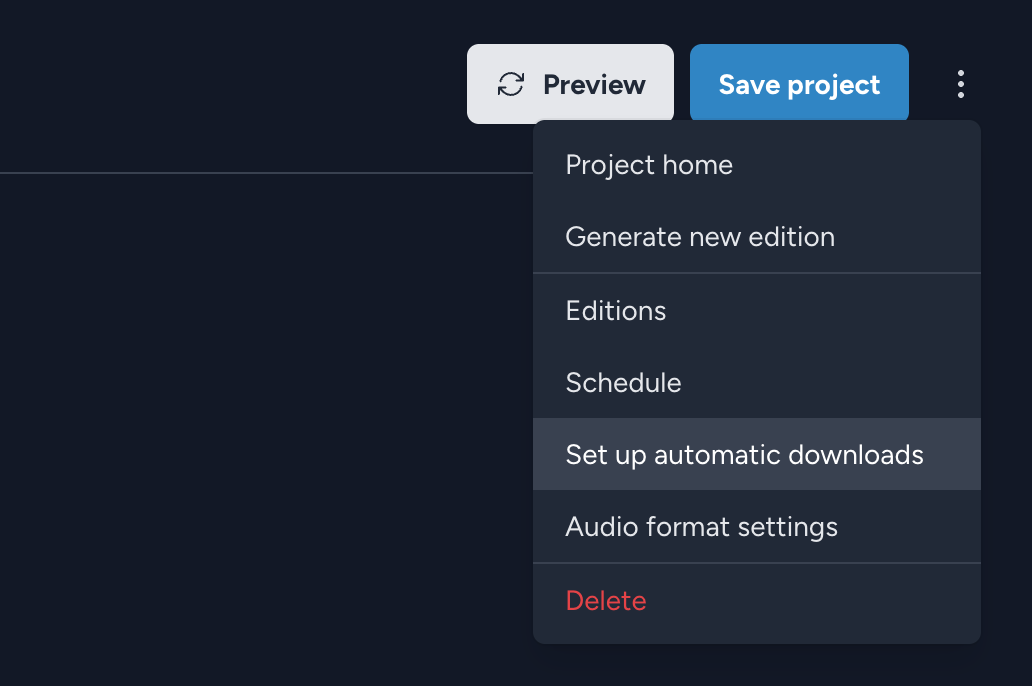
To set these up, go to the "three dots" menu in the top-right corner of your running order and select "Set up automatic downloads".
🗳️ Dropbox
Dropbox is the most common method for importing new editions into your radio automation software. Your station may already be using Dropbox to import content from other service providers.
To enable Dropbox integration, you'll need to link your Dropbox account by going to "Team settings" from the left sidebar, scrolling down, and clicking "Connect Dropbox." Then, follow the steps to link your Dropbox account.

Once connected, return to the edition and click "Set up automatic downloads" from the "three dots" menu in the upper right corner. You'll now see the filename for this project in your Dropbox. It will be uploaded to your App\Audio.co directory in Dropbox.
Each edition has its own filename, which is not editable and remains consistent across editions. Therefore, every time a new edition is generated, this file in your Dropbox will be updated.
You need to generate at least one edition from a project for the file to appear in your Dropbox.
📁 FTP
If you prefer using FTP to automatically download the latest edition into your radio automation software, access the "three dots" menu in the upper right corner of the running order and select "Set up automatic downloads." Scroll down to view your FTP credentials.

If this is your first time connecting a project via FTP, you'll need to click "Create FTP login" here to set up your FTP login details.
Once you've created the login, you'll find your FTP credentials. Each edition has its own filename, which is not editable and remains consistent. Consequently, whenever a new edition is generated, this file on your FTP server will be updated.
For the file to appear in your FTP server, you need to generate at least one edition from a project.
⬇️ Download link
The simplest way to download your most recently created editions from a project is via the latest download link.
You can access this link by going to the "three dots" menu in the upper right corner of the running order and selecting "Set up automatic downloads."
The link will always direct you to the latest completed edition. However, for the link to work, you must generate at least one edition from a project.
Download links attempt to download files to your computer when opened. They are not designed to be inserted directly into a playout system, as this could leave your station in trouble if your connection to our server were interrupted.
👤 Manual download
If you prefer to download each edition manually and add it to your system yourself, you'll find a "download icon" next to each generated edition. Simply click the icon to download the audio file.