Automatically schedule and export logs
Aiir Scheduler lets you automatically schedule and export your logs up to 28 days in advance.
This lets stations schedule their music logs on autopilot, managing only their library and clocks instead of manually scheduling and exporting logs.
On this page, we'll explain how you can set up automatic scheduling and exporting.
🕒 Creating a scheduled task
While some stations may only need a single task to schedule and export their music logs, others may have more complex requirements and wish to create multiple scheduling/export tasks.
To create a task:
- Open your Scheduler library and click 'Settings' in the upper-right corner.
- Press 'Manage automatic scheduling and exporting'
- Press 'Set this up' if you are creating your first task, or 'Set up another' if one was previously created.
- Select the station you wish to schedule/export logs for. If there's only one to choose from, it will be pre-selected.
-
Choose what you want to happen by adjusting the sentence shown. By default, logs for the next day will be scheduled and exported every day at 6am local time.
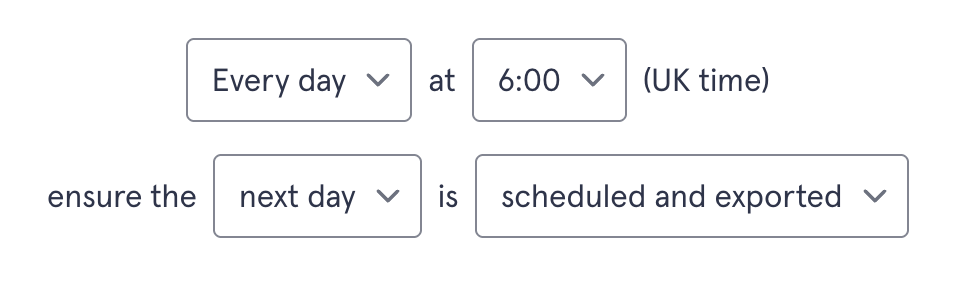
Configuring auto-scheduling takes just a few clicks. - Choose any additional options like specifying export behaviour or setting a preferred pass order, in which categories would be scheduled. By default, categories with the fewest items will be scheduled first.
You can also schedule only certain hours for each day. Just select a period you choose, then press "Choose specific hours to schedule for each day" to set the first and last hours to be scheduled.
Filtered hours cannot run past midnight. So, for example, if you wanted to schedule and export logs between 10pm and 6am the next day, you would have to create two tasks: one covering 10pm-midnight and another covering midnight-6am the following day.
- Choose which station outputs you want your logs to be exported to.
You can choose whether to:
- Export only hours that haven't been previously exported or that have changed since they were last exported
- Export all hours, including those that were previously exported and unchanged.
Aiir Scheduler defaults to the first option, as if your task is set to schedule/export seven days of logs every day, six of those days are unlikely to have any changes.
You also need to choose which station outputs your logs will be exported to. File download outputs aren't available for automatic exports because they would need to be moved somewhere manually after download.
- Press 'Complete setup'.
🎛️ Managing scheduled tasks
Once you have created a task for scheduling/exporting a station's logs, these can be easily managed by:
- Opening your Scheduler library and click 'Settings' in the upper-right corner.
- Press 'Manage automatic scheduling and exporting'
- Press the three dots (...) next to the task you want to manage.
Tasks can be enabled or disabled to determine whether they run on their specified schedule.
Users can also enable notifications when the task completes. Notifications are shown to individual users, so each user who wants to be alerted would need to press "Notify me when done".
Tasks can also be duplicated, saving time if you need to create a copy of an existing task.
They can also be permanently deleted. Users will be asked to confirm they are sure before deleting a task.